


How to set up GA4 for B2B lead tracking, step by step

To set up GA4 for B2B lead tracking, make every lead form a key event, give each lead an ID that travels into your CRM, and clean up how GA4 sorts traffic into channels. That gets you an honest count of which channels create leads. It does not get you pipeline or revenue, because those happen in the CRM weeks later, and GA4 only learns about them if you send them back.
This guide walks through the seven setup steps in order, the reports worth checking each week, and the point where a B2B team needs more than Google Analytics can give.
What can GA4 tell a B2B team, and what can't it?
GA4 is good at the website part of the journey. It shows which sources bring visitors, which pages they read, and which sessions end in a form fill or a booked meeting. For a team with a short sales cycle, that is most of the story.
B2B is different. A buyer reads a blog post in March, comes back from a LinkedIn ad in April, and books a demo in May. The deal closes in August, and four other people from the same company touched your site along the way. GA4 sees sessions and devices. It does not know which company those people work for, which ones belong to the same deal, or whether the lead ever turned into an opportunity.
That gap is why GA4 and your CRM rarely agree on what is working. We covered the common causes in why attribution numbers don't match across GA4, ads, and CRM, and why GA4 alone can't name the channel that closed a deal in this piece on GA4 and closed deals. The setup below closes as much of that gap as GA4 allows.
How do you set up GA4 for B2B lead tracking?
Work through these in order. Each step depends on the one before it, and skipping the lead ID step is the most common reason GA4 data never connects to pipeline.
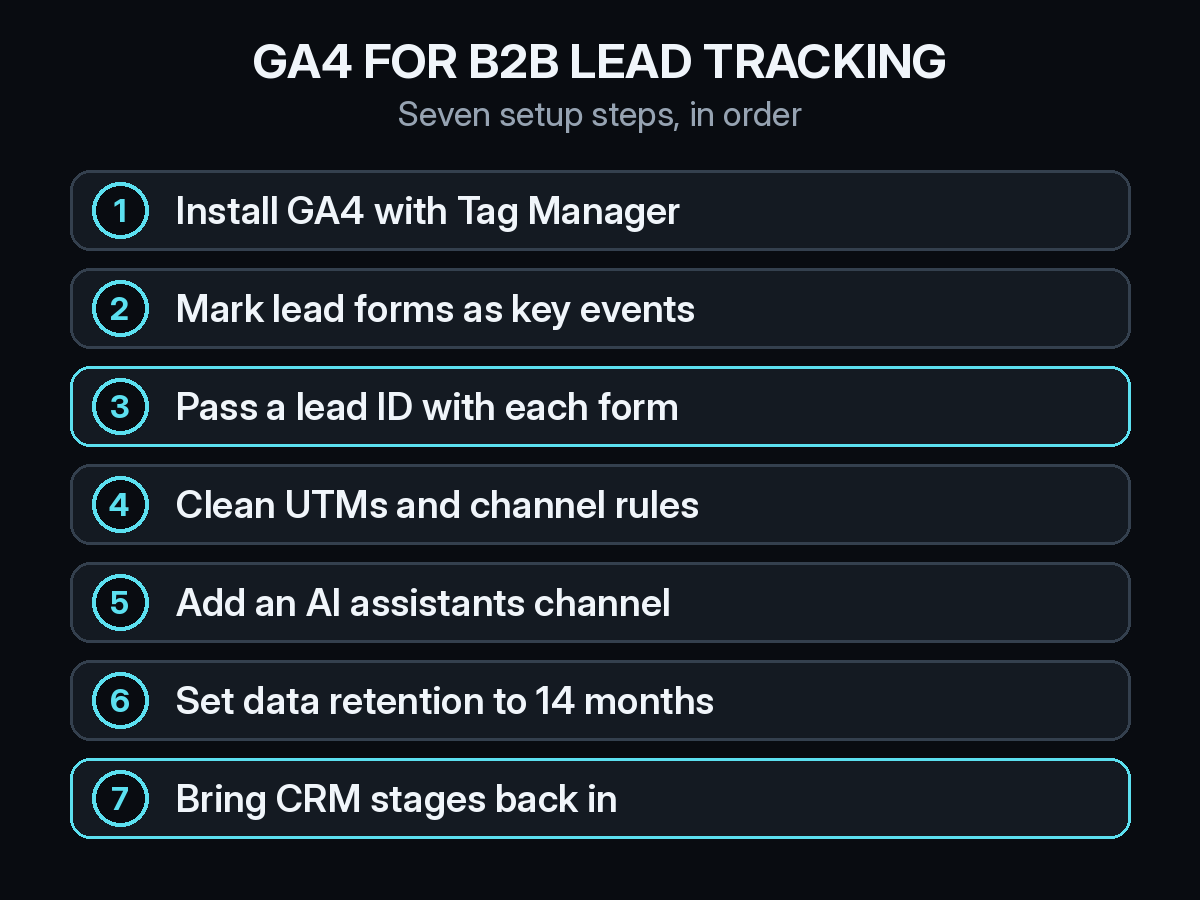
1. Install GA4 with Tag Manager
Put the GA4 tag in Google Tag Manager rather than hard-coding it. You will add form, meeting, and consent triggers later, and doing that in one container is far easier than asking a developer each time. Check that the tag fires on every page, including thank-you pages and any separate app or docs subdomain.
2. Mark lead forms as key events
GA4 renamed conversions to key events in 2024. Send a generate_lead event when a demo, contact, or trial form submits, and mark it as a key event. Track booked meetings as their own event if you use a scheduler such as Calendly. Keep newsletter signups separate so they do not inflate your lead count.
3. Pass a lead ID with each form
This is the step that makes the rest useful. Capture the GA4 client ID, or a lead ID you generate, in a hidden form field so it lands on the contact record in HubSpot or Salesforce. Do not send emails or names to GA4, since Google's terms prohibit personal data there. With a shared ID, you can later join a GA4 session to the CRM deal it became.
4. Clean UTMs and channel rules
GA4 sorts traffic into channels using source and medium. Inconsistent tags like "LinkedIn", "linkedin", and "li" split one channel into three. Pick one naming convention and enforce it. Our list of UTM mistakes that break B2B attribution covers the usual offenders. Also add your scheduler, payment, and login domains to the unwanted referrals list so a redirect does not steal credit for the lead.
5. Add an AI assistants channel
Visitors who click through from ChatGPT, Perplexity, Claude, Gemini, or Copilot usually land in Referral, mixed in with partner sites and directories. Create a custom channel group with a rule that matches those sources and call it AI assistants. Now you can see how many leads arrive after someone asked an AI tool about your category. Our AI search attribution FAQ explains what this traffic does and does not capture.

6. Set data retention to 14 months
The default retention for event-level data in GA4 is 2 months. B2B cycles run longer than that, so set it to 14 months in the property's data settings. For anything older, or for joins to CRM data, turn on the free BigQuery export.
7. Bring CRM stages back in
GA4 can record events that happen outside the website if you send them, through data import or the Measurement Protocol. Send opportunity created and closed-won as events tied to the lead ID from step 3. The same CRM stages can go to your ad platforms, which we walk through in sending B2B pipeline back to Google Ads with offline conversions.
Which GA4 reports should a B2B marketer check each week?
Keep it short. Three views answer most weekly questions:
- Leads by channel. Key events by your cleaned channel group, including AI assistants. Watch for channels that bring traffic but no leads.
- Lead pages. Landing pages ranked by the leads that started there. This is the quickest read on which content earns demos.
- Pipeline by channel. Only possible once step 7 is in place. Opportunity events by first channel and by the channel of the converting session.
Two cautions. GA4's reporting attribution offers data-driven or last click, with lookback windows of up to 90 days, which is shorter than many B2B cycles. And consent banners mean some visitors are never counted at all. How cookie consent affects marketing attribution covers what that does to your numbers.
When do you need more than GA4?
GA4 is a fair free starting point for lead counts. It runs out when the questions move to accounts and money: which channels produce pipeline, what each channel's real CAC is, whether a LinkedIn ad view that never got a click helped a deal, and how many buyers found you through an AI answer before they ever searched your name. Answering those with GA4 means building and maintaining the CRM joins yourself.
Source does that work for you. One pixel, installed directly or through Google Tag Manager, follows visits to leads and closed deals in your CRM with no warehouse to set up. You get multi-touch, view-through, offline, and LLM attribution across ChatGPT, Claude, Perplexity, and Gemini, plus real CAC by channel and daily reports in Slack. You can keep GA4 running alongside it.
If you want to see your own channels tied to pipeline, start with Source here.